How to use Tenderytics: what each menu gives you
Tenderytics shows tenders that fit your business, shows who won similar work before, and keeps your bids and dates in one place. This page tells you where each thing is and which button to press.
Your 7-day free trial starts as soon as you sign up. Each business gets one free trial. No card needed, and nothing is charged automatically.
Your first ten minutes
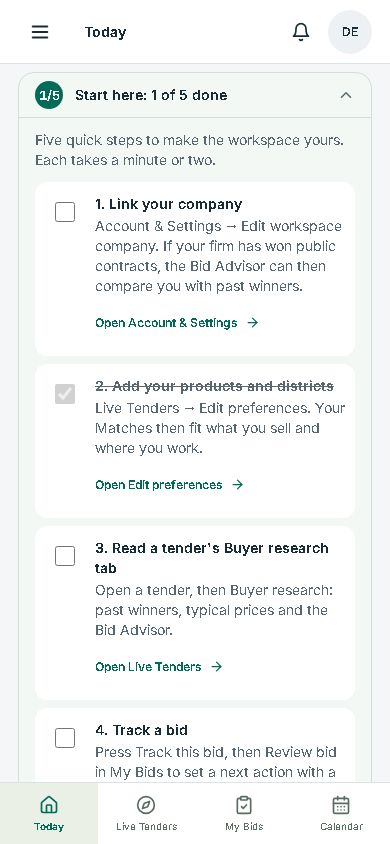
- Account & Settings → Edit workspace company: link your firm. If it has won public contracts, the Bid Advisor compares you with past winners.
- Live Tenders → Edit preferences: add the products you sell and the districts you work in. Your Matches get closer to your business.
- Open a tender → Buyer research: see who won similar work before, and for how much.
- Press Track this bid, then My Bids → Review bid: set your next step and its date.
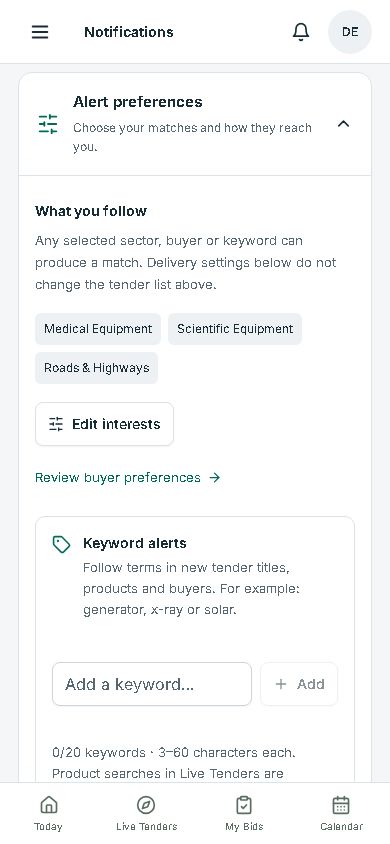
- Bell icon → Alert preferences: add a few keywords and switch on notifications.
The Start here card on Today lists the same five steps. It ticks a step itself when it can see you have done it; you tick the rest.
Sign-up and the first two steps
Where: The app shows this the first time you sign in.
- You see
- Two boxes: Your company, where you type the name you bid under, and Your business sectors, where you pick at least one sector.
- Press
- If you like, press Look up company history and pick your firm from our award records; it is optional. Then press Open my workspace.
- You get
- Tenders and alerts that follow your sectors. You can change them at any time.
Today
Where: First item in the menu; also in the bar at the bottom of a phone.
- You see
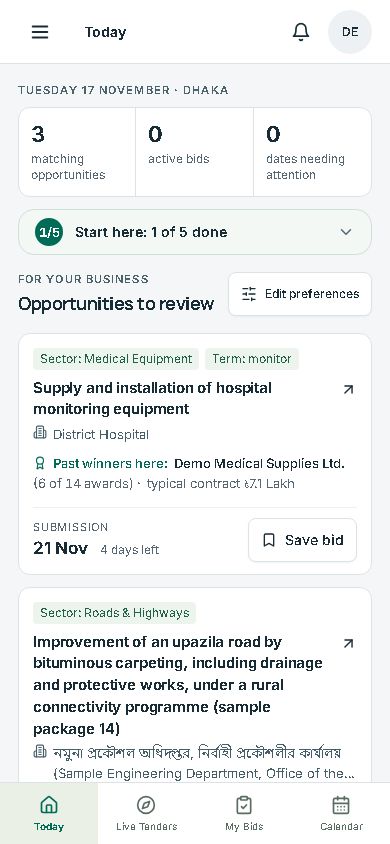
- How many tenders match you, your active bids and the dates that need you; up to four matching tenders, closing soonest first; the dates coming up. A new account also sees the Start here card with the five first steps.
- Press
- Save bid on a tender moves it to My Bids. Edit preferences changes what matches. Open your full feed shows all your matches.
- You get
- What is new and what is due, on one screen.
At first it says “No active bids yet” until you save a bid. The dates list stays empty until a bid or project has a date.
Live Tenders
Where: Second item in the menu.
- You see
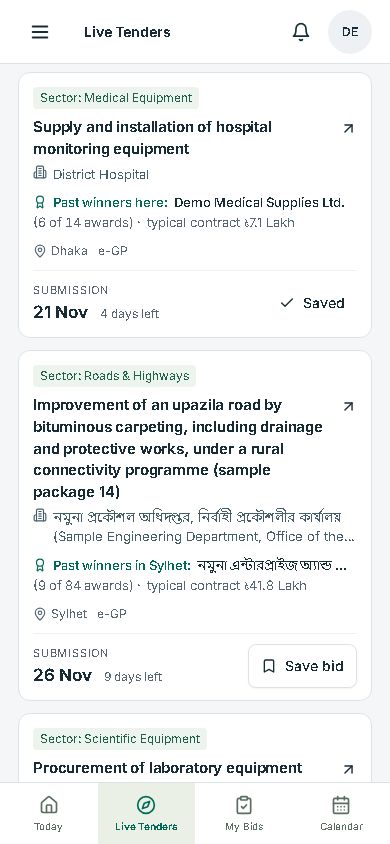
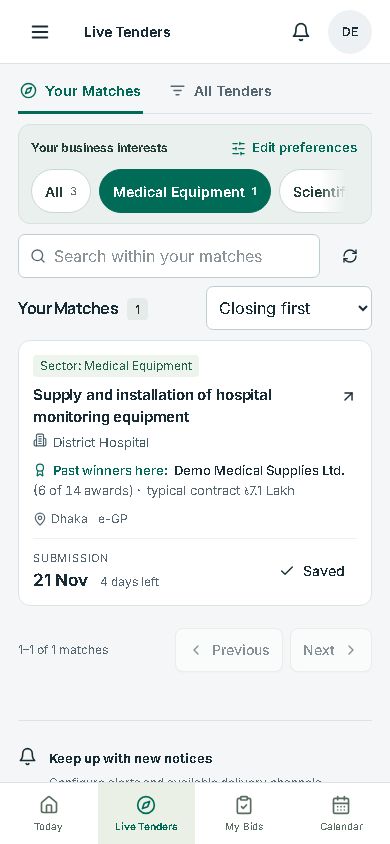
- Two tabs. Your Matches: tenders that fit your sectors, product words and followed buyers, each with the reason it matched. When you have chosen more than one sector, chips sit above the list: All, then one for each of your sectors with its number of matches. All Tenders: every notice we have captured, with a search box.
- Press
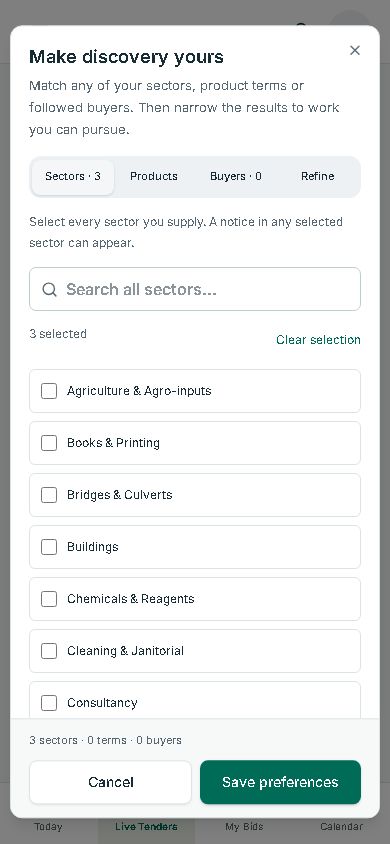
- Tap a sector chip to see only that sector, and All to see everything again. On a phone the chips are one row: slide it sideways to reach the rest. Edit preferences: Sectors, Products, Buyers and Refine (districts, closing window, words to leave out). In All Tenders, Filters narrows by sector, buyer type, buyer, district or re-tender, and Compare puts up to three side by side. Manage alerts is at the bottom.
- You get
- Only the tenders worth your time, and why each one is there.
The Past winners here line
Under many tenders there is one line: the supplier that won most of this buyer's similar work, how many of those awards it won, and the typical contract value. It comes from published award notices. Tap it to open the Bid Advisor. A tender with no matching award history has no line.
Setting your sectors, products and districts
In the Edit preferences window, pick as many sectors as you need, type product words (for example “generator”), and set districts and a closing window under Refine. Today, Your Matches and your alerts all follow these choices.
One sector at a time
The chips above Your Matches are your own sectors. Tap one and the list, its count and your search show only that sector. Tap All to see every interest again. A sector you did not choose has no chip: add it in Edit preferences, or look for it under All Tenders.
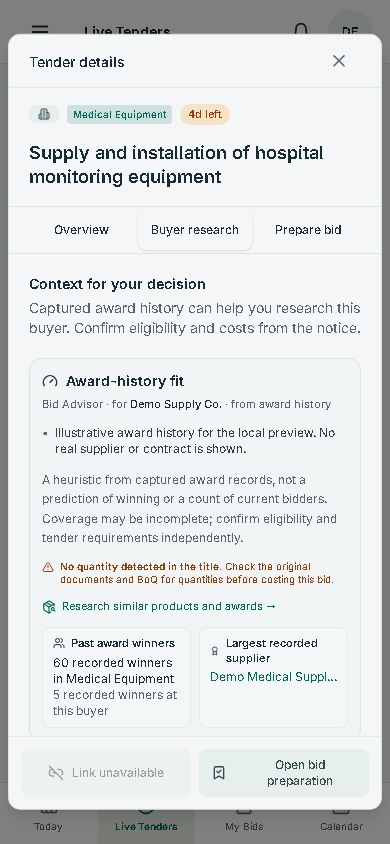
The tender page
Where: Opens when you tap a tender's title in any list.
- You see
- Three tabs. Overview: submission deadline, buyer, district, budget when published, tender security, document price, pre-bid and document purchase dates, a Share row, scope and the notice source. Buyer research: the Bid Advisor (an award-history fit, the buyer's estimate when published, how past awards compared with estimates, past suppliers and their share, possible partners) and Who won similar before. Prepare bid: a tender brief to copy and Add deadline to calendar.
- Press
- Track this bid at the bottom saves it to My Bids; the button then reads Open bid preparation. The button beside it opens the official notice. In the Share row under the details, WhatsApp opens WhatsApp with the tender's title, its closing date and a link to its free page, ready to send; Other apps does the same through your phone's share menu. A tender that has no free page has Share this tender under Prepare bid instead, and that link needs sign-in.
- You get
- Decide bid or no-bid in a few minutes, with the buyer's history in front of you.
The Bid Advisor is about your firm only when you have linked your company; otherwise it shows the market. It is history, not a forecast: it does not show who is bidding now or your chance of winning.
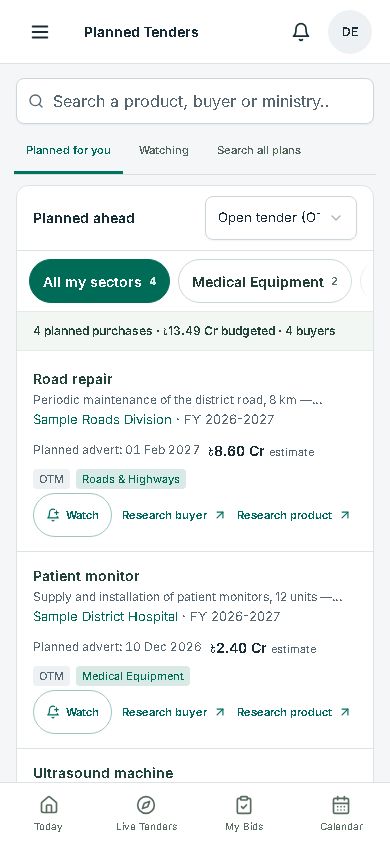
Planned Tenders
Where: Third item in the menu.
- You see
- What buyers plan to purchase and have not tendered yet, from their published annual procurement plans: the item, the buyer, the estimated budget and the planned advertising date. Planned for you opens on your own sectors, biggest budget first, with one line that adds them up. When you have chosen more than one sector, chips sit above the list: All my sectors, one for each sector with its number of plans, and All sectors.
- Press
- Tap a sector chip to see only that sector. Type a product, buyer or ministry in the search box to search every plan; Search all plans also narrows by buyer, fiscal year, method and status. Research buyer and Research product show who won that work before and at what price. Press Watch on a plan and we tell you in the app, and on your phone if notifications are on, when a tender is published for it; Watching lists the plans you watch. The list shows only plans whose planned date is still ahead. Plans of this year whose date has passed or was not given are kept apart: press Show them under the list. Some of those are late and still to come; others were tendered earlier.
- You get
- See what may be bought months before the tender appears, and prepare early. Plans change, and not every plan becomes a tender.
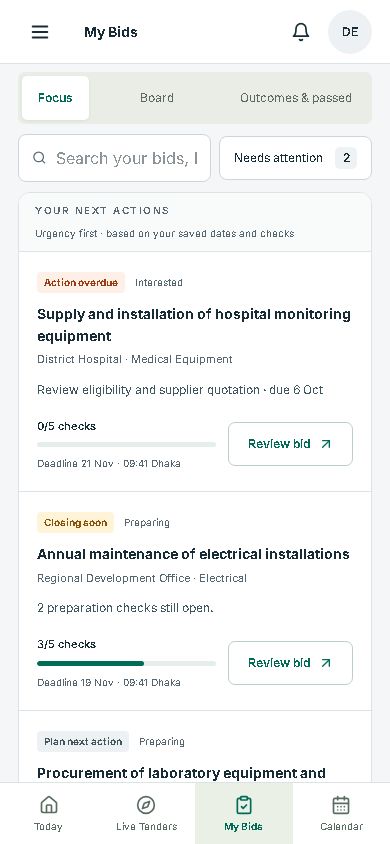
My Bids
Where: Fourth item in the menu.
- You see
- Counts of active bids, bids with checks complete and bids awaiting a result. Three views: Focus (most urgent first), Board (a lane for each stage) and Outcomes & passed (your results by sector and buyer).
- Press
- Review bid: five checks (eligibility, supply capacity, cost and quotation, bid security and documents, final review), a next action with a date, and notes. Move the stage: Interested, Preparing, Submitted, Won, Lost, Not pursuing. When you win, Start project.
- You get
- Every bid's checks, next step and deadline in one place.
Empty (“Start with one opportunity.”) until you press Track this bid or Save bid on a tender.
Calendar
Where: Fifth item in the menu.
- You see
- One week of dates: submission, document purchase, pre-bid and next-action dates from your bids, plus delivery dates. Needs attention lists what is due today or overdue.
- Press
- Pick Everything, Bids or Delivery; move to the previous or next week. To put a deadline in your phone's own calendar, open the tender, then Prepare bid → Add deadline to calendar.
- You get
- The week's dates at a glance.
Empty until you save a bid or add a project.
Buyers & Companies
Where: Open Intelligence in the menu.
- You see
- Published award records in five views: Companies, Buyers, JV partners, Repeat buying and Award search. A company page shows its recorded wins; a buyer page shows its notices, plans and award history.
- Press
- Search a name. On your own firm's page, press Set as my company; on a competitor's, press Watch.
- You get
- Who buys, who wins and for how much, from published award notices.
Product Research
Where: Inside Intelligence.
- You see
- For one product: the notices and plans that mention it, who buys and who supplies it, and past award values.
- Press
- Type your product; press Find matching tenders to see open work.
- You get
- Past prices and buyers before you quote. A past contract total is not a unit price; check scope and quantities.
Market Signals
Where: Inside Intelligence.
- You see
- Four tabs: Re-tender watch, Expiring contracts, Few recorded winners and Prospect buyers.
- Press
- Pick a tab and a sector, or “My sectors”.
- You get
- Early leads: work floated again, contracts coming to an end, fields with few recorded winners. Prospect buyers works once your company is linked.
Bid Calculators
The last link inside Intelligence opens the four free calculators on the website in a new tab: tender security, performance security and retention, the 5% band of limited tendering, and the floor for a significantly low-priced tender. They are pages of the website, so they need no sign-in. Open the calculators.
Customers
Where: Open Operations in the menu.
- You see
- Your contact book: People, Institutions, By district and Visit plan.
- Press
- New contact; Plan a visit; call or WhatsApp; copy a day plan or report and paste it into WhatsApp.
- You get
- Remember who you know at each buyer. The tender's Buyer research tab shows how many people you know there.
Empty for a new account until you add contacts.
Delivery & Receivables
Where: Inside Operations.
- You see
- Projects for work you have won: milestones, money received and owed, securities and retention.
- Press
- New project, or Start project in My Bids when a bid is Won.
- You get
- Delivery and money owed, tracked after the win.
Empty for a new account until you add a project.
Notifications
Where: The bell icon in the top bar.
- You see
- New matching tenders since you last marked them read.
- Press
- Alert preferences: choose sectors, add up to 20 keywords, and choose how alerts reach you (a daily e-mail, which is on by default, and notifications on this device). Mark all read clears the list.
- You get
- News of new matches without opening the app.
A saved search in All Tenders is a shortcut, not an alert.
Account & Settings
Where: Your name at the bottom of the menu, or your initials at the top right.
- You see
- Preferences (sectors, alerts, your company), Business & contact details, Help & payment, and Security & data.
- Press
- Edit workspace company; Send the transaction ID on WhatsApp; Change password; Download my data.
- You get
- What you follow, your company, payment and help, in one place.
To change your registered company or contact details, message us on WhatsApp.
The bottom of the menu
- Quick Search: jump to any page (Ctrl K on a computer).
- Help on WhatsApp: a chat with us on +880 1805-987890, for a question or for help with a payment. Where to send the money is under “How to pay” on Account & Settings.
- Guide: opens this page; “বাংলায় পড়ুন” beside it opens the Bangla guide.
Paying after the trial
Your 7-day free trial starts as soon as you sign up. Each business gets one free trial. No card needed, and nothing is charged automatically. After that:
- Pay ৳1,500 monthly or ৳12,000 yearly by bKash to 01817-357407.
- Send the bKash transaction ID to us on WhatsApp.
- We check the payment and switch your account on.
- Nothing renews or charges automatically. You decide when to pay again.
In the app, Account & Settings → Help & payment shows the same steps and a Send the transaction ID on WhatsApp button. See how to pay.
What it does not do
- It does not submit bids for you. You submit on e-GP, or as the notice says.
- It does not show who is bidding now. Past winners are history only.
- It does not have every tender or every award. Coverage and update timing vary by buyer and source; see data coverage and reliability.
- It does not promise a win, and its figures are not official. Always check the official notice, the tender documents and any amendments before you act.
Common questions
Where do I change my sectors or products?
In Live Tenders, press Edit preferences, or go to Account & Settings, Preferences. Today and Your Matches use the same choices.
Why does a tender have no past-winners line?
The line shows only when published award history matches that buyer and kind of work. No line does not mean nobody bid or won before.
How do I get alerts on my phone?
Tap the bell icon, open Alert preferences, add a few keywords and switch on notifications for this device. The daily e-mail is set in the same place and is on by default. Automatic WhatsApp alerts are not available yet.
What happens when the free trial ends?
The app shows “Your free trial has ended”. Pay by bKash and send the transaction ID on WhatsApp; we check it and switch your account on. Your setup and bids are kept. Nothing is charged automatically.
Try it on your own tenders.
Start a 7-day free trial today. No card needed. Nothing is charged automatically.
Start your 7-day free trial